
Import Clients, Contacts and Engagements from CSV
Map and import Client, Contact and Engagement records from delimited files.
Updated 11 September 2026
Open Import settingsBefore you start: You need permission to import CSV files. Use safe data and upload no more than one Client, one Contact and one Engagement file in the same import.
Upload the files
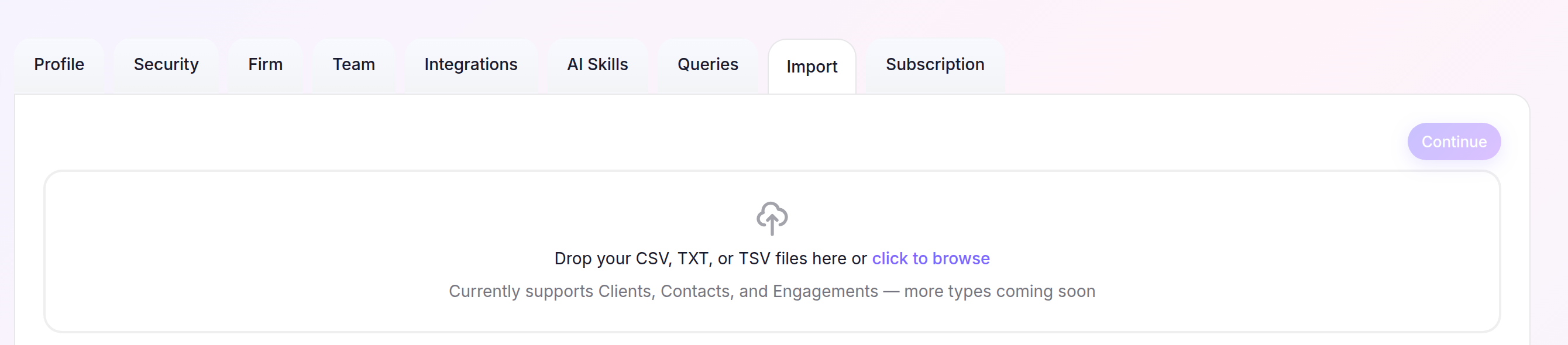
- Select Settings, then open Import.
- Drop CSV, TXT or TSV files into the upload area, or select click to browse. You can add up to three files.
- Check that each file is assigned to Clients, Contacts or Engagements, then select Continue.
Review and import
- Review the suggested field mappings and relationships on each entity tab.
- Open Issues when shown. For warnings or possible duplicates, choose Import anyway or Skip this row.
- Fix correctable cell errors, then select Re-analyze. Cheku skips rows that still have errors.
- Map every required field, then select Import All.
Cheku imports Clients before Contacts and Engagements so their relationships can be linked, then shows the result for each file.