
Manage Staff roles, tiers and invitations
Update Staff access and manage outstanding invitations from one Team list.
Updated 18 September 2026
Open Team settingsBefore you start: You need permission to access firm settings. Changing Subscription Tier also needs permission to manage the subscription, and Firm Permission Role changes follow the hierarchy shown on the page.
Update a Staff member
- Select Settings in the sidebar, open Team, then select Edit.
- Change the Staff member’s Firm Role, Subscription Tier, or Firm Permission Role.
- Select Save.
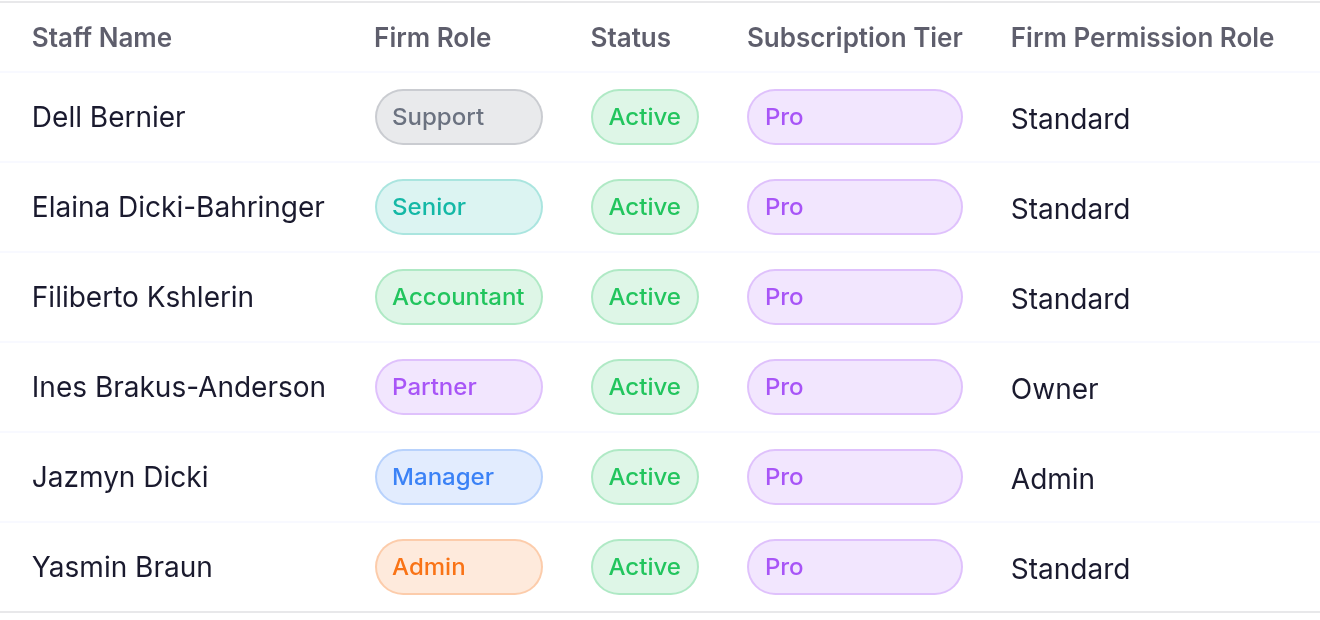
A Subscription Tier with no purchased seats is disabled. The Firm Permission Roles section below explains which roles you can assign.
Firm Permission Roles
- Owner — Full access including firm deletion and billing management
- Subscription Admin — Settings and billing access
- Admin — Settings access, no billing
- Standard — App access only
You can assign roles up to your current level. Options you cannot assign are hidden from the Firm Permission Role list.
Manage an invitation
- Find the Staff member with an Invited status.
- Select Resend to retry invitation delivery, or select Remove and confirm Remove to cancel their access.
A success banner confirms a delivered resend. The Team list updates after removal.