
Connect or disconnect an integration
Connect an available provider or remove a connection your Firm no longer uses.
Updated 12 September 2026
Open IntegrationsBefore you start: You need permission to access firm settings. The provider must also be available under your Firm’s subscription.
Connect a provider
- Select Settings, open Integrations, then choose Available.
- Select Connect and complete the provider’s authorisation. For a manual mailbox, select Set up, enter its connection details, then select Save.
- If Cheku shows Available targets, select Use beside the correct target.
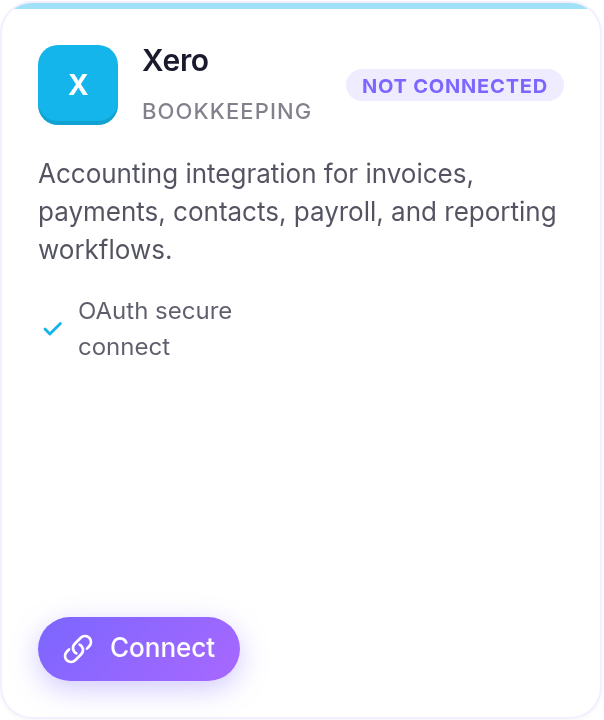
The provider moves to Connected. A provider can instead show Contact admin, Request access or Upgrade when access is unavailable.
Reconnect or disconnect
- Open Connected and find the provider.
- Select Reconnect to refresh its authorisation, or Disconnect to remove the connection.
A disconnected provider returns to Available when the Firm can connect it again.